In today’s global e-commerce world, customers come from different countries and speak many languages. UnoPim Magic AI Product Content Translation helps brands communicate better across languages.
If your product information is only in one language, you might lose a large part of your audience. UnoPim’s Product Information Management (PIM) Magic AI helps you reach more customers easily.
In this blog, you’ll learn how to use UnoPim Magic AI for easy and accurate product content translation to make your store ready for global audiences.

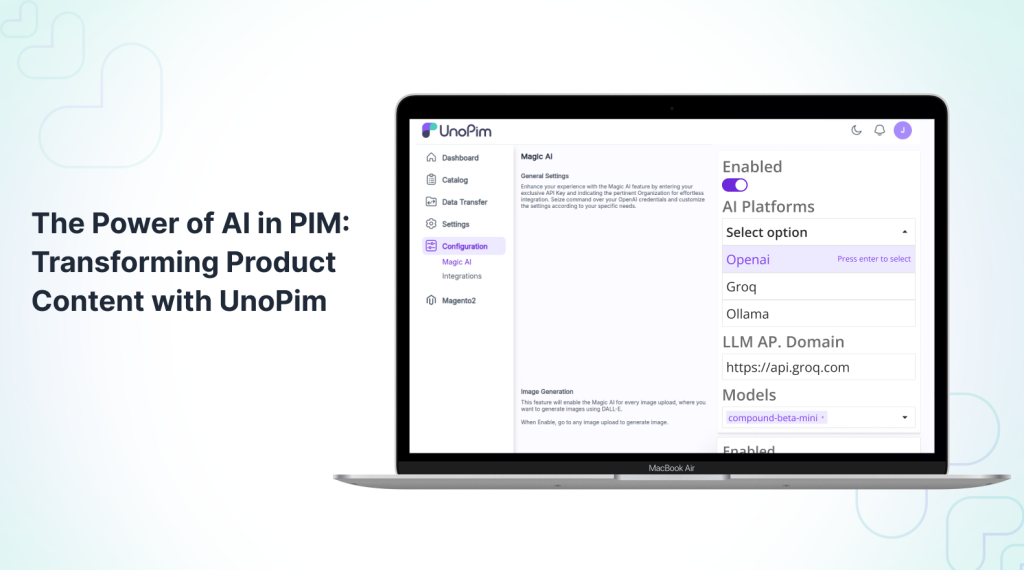
What is UnoPim Magic AI Product Content Translation?
UnoPim Magic AI is a built-in feature powered by Artificial Intelligence that helps you create and manage product content more efficiently.
UnoPim Magic AI Product Content Translation ensures your product information stays consistent and multilingual across all channels.
With Magic AI, you can:
- Generate product descriptions automatically in just a few clicks.
- Translate existing product content into multiple languages.
- Maintain a consistent tone and style across all your sales channels.
You don’t need any third-party tools or integrations — Magic AI is already part of UnoPim, ready to make your content creation faster and smarter.
To know more about its setup and configuration, visit UnoPim Magic AI.
Why Use Magic AI for Translation?
Manually translating product information can be time-consuming and tiring. Magic AI makes this process fast and effortless by:
- Translating content in seconds — no need to wait or switch tools.
- Keeping the original meaning and context of your product descriptions.
- Allowing quick review and editing after translation for better accuracy.
- Supporting multiple languages all within one platform.
With Magic AI, your team can spend less time on repetitive tasks and more time on creativity, quality, and product improvement.
How to Use UnoPim Magic AI Product Content Translation (Step-by-Step Guide)
Translating your product content in UnoPim using Magic AI is simple once you know the setup.
Follow the steps below to configure Magic AI and translate your product information automatically.
Step 1: Log in to UnoPim
Log in to your UnoPim admin dashboard with your credentials.
Once you’re on the dashboard, go to Configuration → Magic AI.
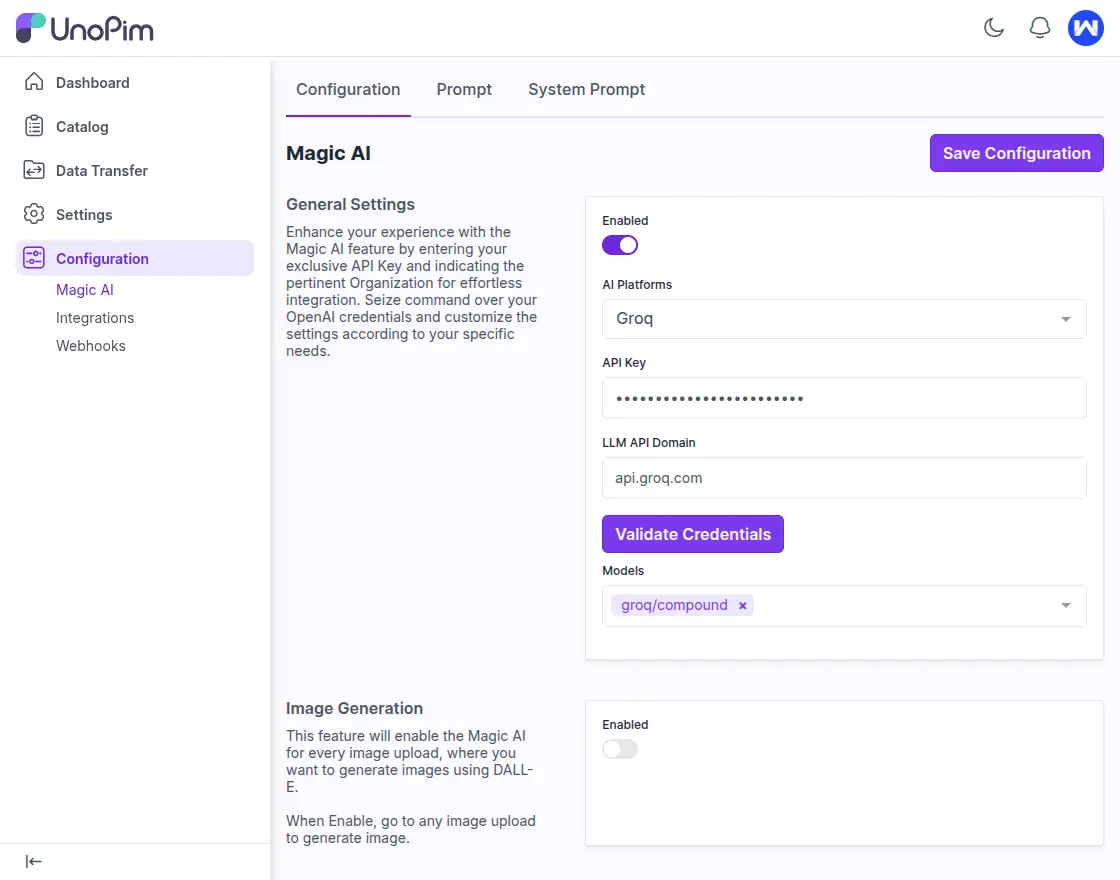
Step 2: Choose Your AI Platform
In the Magic AI settings, choose which AI platform you want to use.
Currently, UnoPim Magic AI supports the following options:
- OpenAI
- Groq
- Gemini
- Ollama
Select any one of them and enter the API Key.
The API Domain will fill automatically once you choose the AI.
Then click on Validate Credentials to confirm your key is working.
After validation, select the AI Model you want to use for content generation.

Step 3: Configure Translation Settings
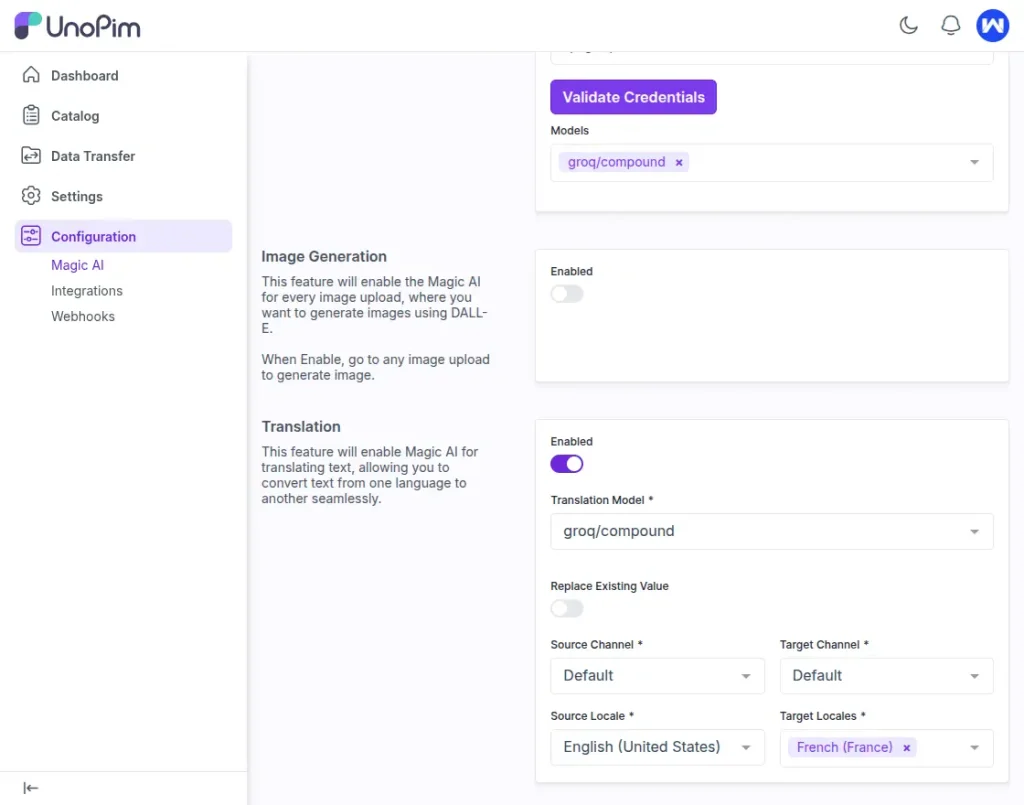
Scroll down to the Translation section.
Here, you’ll need to:
- Enable the Translation feature.
- Choose the Translation Model (if you selected multiple models earlier).
- Select the Source Channel and Source Locale (for example, English – United States).
- Select the Target Channel and Target Locale (for example, Hindi – India).
Make sure your Target Locale is enabled in the Channel settings before using translation.
Once everything is set, click Save Configuration.

Step 4: Enable AI Translation for Attributes
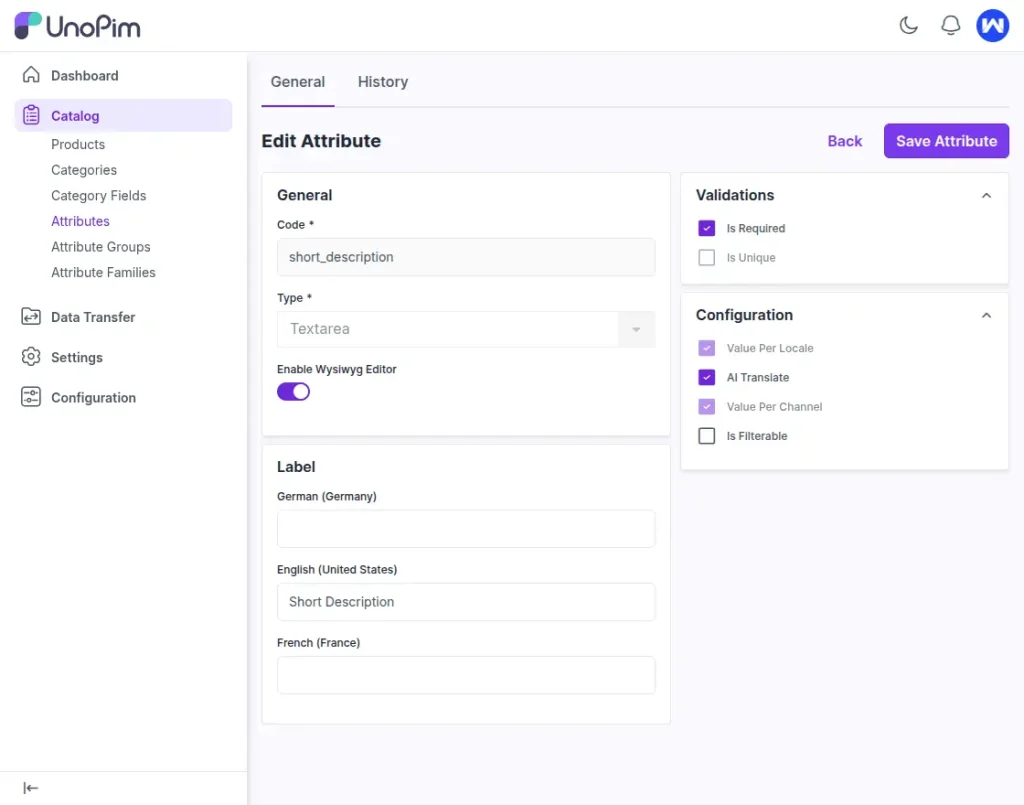
Go to Catalog → Attributes and open the attribute you want Magic AI to translate
(for example, Short Description).
Check the box “AI Translate” and click Save.
This tells UnoPim which fields can use Magic AI translation.
Step 5: Open or Create a Product
Navigate to Catalog → Products.
If you already have a product, open it for editing; otherwise, create a new product and fill in the required fields, then Save it.
Step 6: Translate Attribute Content
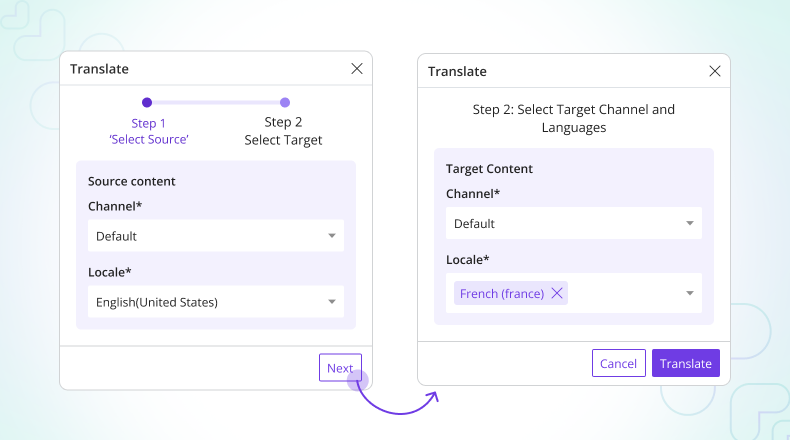
After saving, you’ll see a Translate option above any attribute that has AI Translate enabled.
- Click Translate.
- Step 1 – Select Source: Choose the source channel and locale (e.g., Default / English – US) and click Next.
- Step 2 – Select Target: Choose the target channel and locale (e.g., Default / Hindi – IN).
- Click Translate.
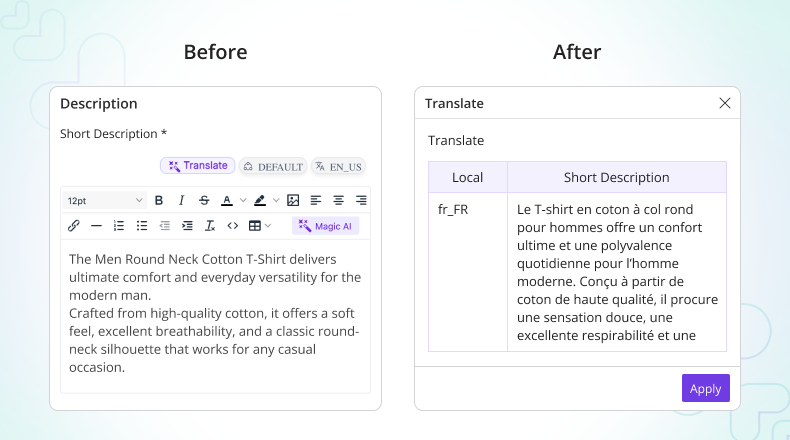
After a few seconds, Magic AI will display the translated content.
Click Apply to save it.

Step 7: Translate Multiple Attributes at Once
You can also translate several fields together:
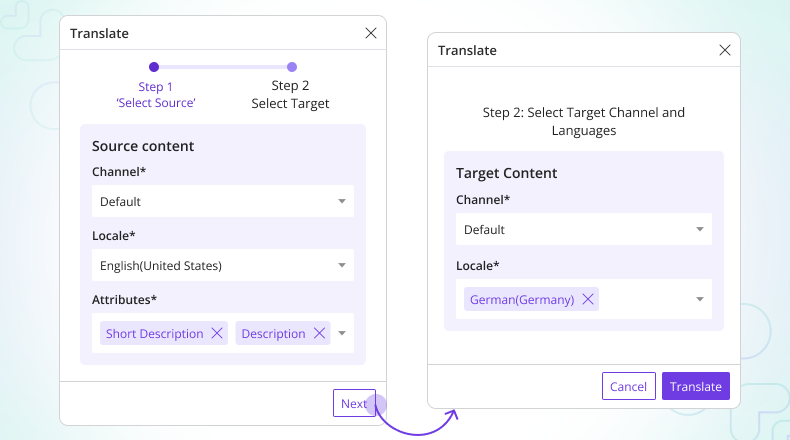
- At the top of the product edit page, click More → Translate.
- A new Translate section will open.
- In Step 1, select:
- Source Channel and Locale
- Attributes you want to translate (all AI-enabled attributes appear automatically).
- Click Next, then select the Target Channel and Target Locale.
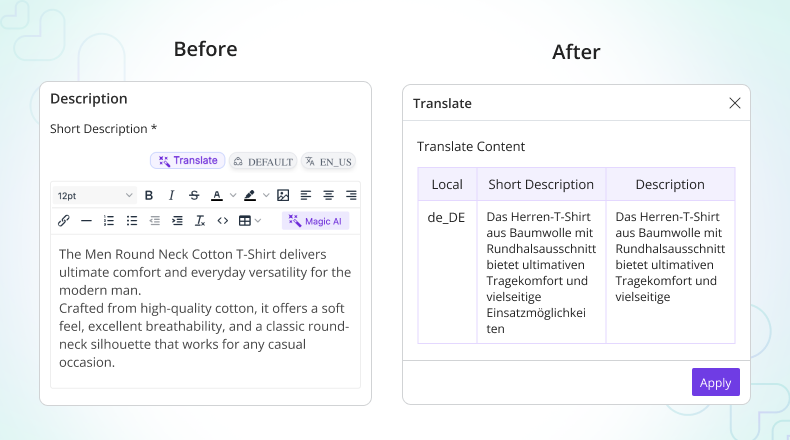
- Click Translate, and once the translated text appears, click Apply to save it.
With these steps, Magic AI will automatically translate your selected product information into the target language — keeping your content accurate, fast, and ready for global audiences.
Best Practices for Using Magic AI
To get the best results from Magic AI, follow these tips:
- Keep your original content clean: Make sure the text is clear and free of spelling or grammar errors. AI performs best with well-written input.
- Always review translations: Before publishing, check the translated text for tone and context accuracy.
- Use consistent attribute names: Keep the same attribute structure across all languages for smooth syncing.
- Avoid slang or regional words: This helps AI maintain accurate meaning across different languages.
- Test before publishing: Review translations on your live store to ensure layout and formatting look correct.
Benefits of Using Magic AI in UnoPim
Here’s why Magic AI is a must-use tool for product translation:
- Faster global reach: Translate your product content into multiple languages instantly.
- Save costs: Eliminate the need for hiring full-time translators.
- Boost productivity: Translate hundreds of products in just a few minutes.
- AI-driven consistency: Maintain the same tone and format across all product data.
- Improved user experience: Help customers understand your products better in their preferred language.
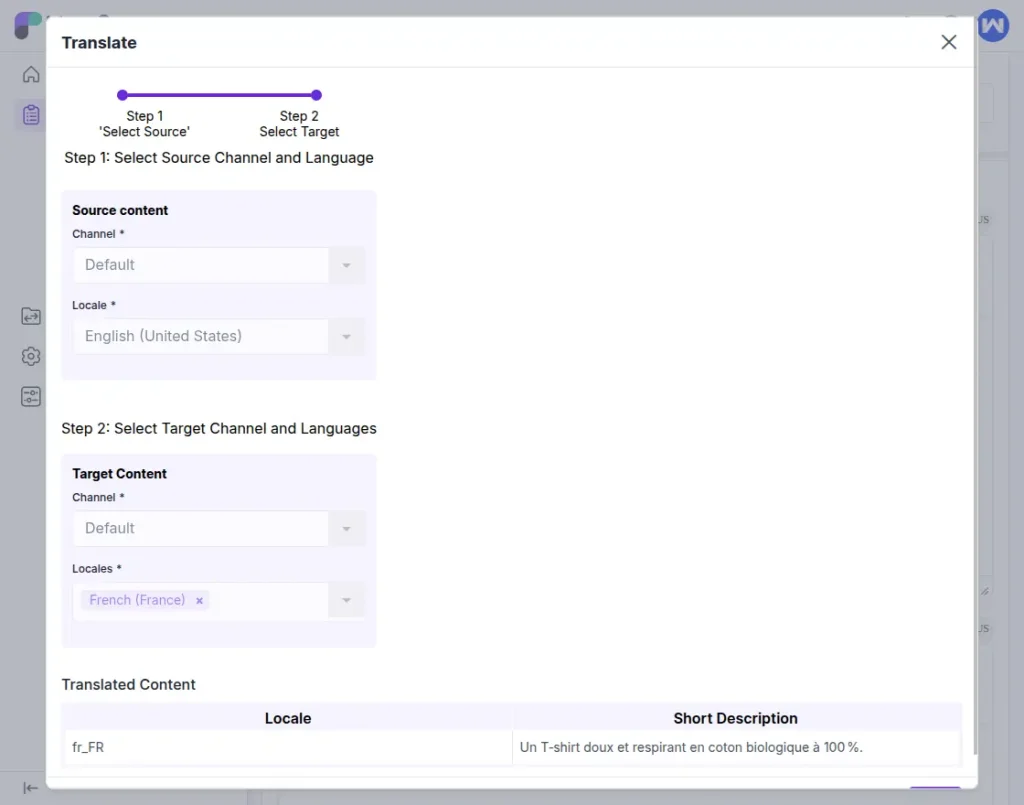
Example: Translating a Product
Let’s take an example.
Suppose you are selling a product called “Cotton T-Shirt” with the description:
“A soft, breathable T-shirt made from 100% organic cotton.”
Now, you want to translate this product into French.
After setting up Magic AI and choosing French as your target language, UnoPim automatically translates it to:
“Un t-shirt doux et respirant fabriqué à partir de coton biologique à 100 %.”
That’s it! Your product description is now perfectly translated and ready to go live on your French store.
Conclusion
UnoPim Magic AI makes translation simple and powerful. You don’t need external tools or translators for each language. It lets you translate directly inside UnoPim in just a few clicks.
Just open your product, click on Magic AI, and your content is instantly translated — saving you valuable time and reducing manual effort. It ensures consistency and accuracy across all languages.
If you sell internationally, this feature is a must-try. With UnoPim Magic AI, expanding your eCommerce business to new markets becomes faster, easier, and more efficient than ever before.